
本日のおすすめです。
ふんわりしてるよ
テキストをスペースキーで次のテキストに
ノベルゲームみたいなやつができます。
2つスクリプトを使うよ
前後編に分かれるよ
ひとつめ
初期スクリプト(MonoBehaviour)じゃなくて、
【ScriptableObject】でスクリプトを作るよ
using System.Collections.Generic;
using UnityEngine;

[CreateAssetMenu(fileName = "New Data", menuName = "StoryData")]
public class StoryData : ScriptableObject
{
    [System.Serializable]
    public class Story
    {
        public Sprite Background;
        public Sprite CharacterImage;
        [TextArea]
        public string StoryText;
        public string CharacterName;
    }

    public List<Story> stories = new List<Story>();
}
ふたつめはふつうのスクリプト
using System.Collections.Generic;
using TMPro;
using UnityEngine;
using UnityEngine.UI;

public class StoryManager : MonoBehaviour
{
    [SerializeField] private StoryData[] storyDatas;
    [SerializeField] private Image background;
    [SerializeField] private Image characterImage;
    [SerializeField] private TextMeshProUGUI storyText;
    [SerializeField] private TextMeshProUGUI characterName;

    public int storyIndex { get; private set; } = 0;
    public int textIndex { get; private set; } = 0;

    private void Start()
    {
        if (storyDatas == null || storyDatas.Length == 0)
        {
            Debug.LogError("storyDatasが空! Inspectorで割り当てて!");
            return;
        }
        Debug.Log($"Starting with storyIndex: {storyIndex}, textIndex: {textIndex}");
        SetStoryElement(storyIndex, textIndex);
    }

    private void Update()
    {
        if (Input.GetMouseButtonDown(0) || Input.GetKeyDown(KeyCode.Space))
        {
            Debug.Log("Input detected: Calling Next()");
            Next();
        }
    }

    public void Next()
    {
        textIndex++;
        Debug.Log($"After increment: storyIndex: {storyIndex}, textIndex: {textIndex}");

        var currentStoryData = storyDatas[storyIndex];

        if (textIndex >= currentStoryData.stories.Count)
        {
            Debug.Log($"TextIndex overflow: Resetting to 0, advancing storyIndex to {storyIndex + 1}");
            textIndex = 0;
            storyIndex++;

            if (storyIndex >= storyDatas.Length)
            {
                Debug.Log("全てのストーリーが終了しました。");
                return;
            }
        }

        SetStoryElement(storyIndex, textIndex);
    }

    private void SetStoryElement(int _storyIndex, int _textIndex)
    {
        if (_storyIndex < 0 || _storyIndex >= storyDatas.Length)
        {
            Debug.LogError($"storyIndex範囲外! Resetting to 0. Current: {_storyIndex}");
            _storyIndex = 0;
        }

        var currentStoryData = storyDatas[_storyIndex];
        Debug.Log($"Current story: Index {_storyIndex}, Stories count: {currentStoryData.stories?.Count ?? 0}");

        if (currentStoryData.stories == null || _textIndex < 0 || _textIndex >= currentStoryData.stories.Count)
        {
            Debug.LogError($"textIndex範囲外かstories空! Resetting to 0. Current textIndex: {_textIndex}");
            _textIndex = 0;
        }

        var storyElement = currentStoryData.stories[_textIndex];

        background.sprite = storyElement.Background;
        characterImage.sprite = storyElement.CharacterImage;
        storyText.text = storyElement.StoryText;
        characterName.text = storyElement.CharacterName;

        Debug.Log($"Displayed: {storyElement.CharacterName} - {storyElement.StoryText}");
    }
}
今回使うもので既存レシピに掲載済み
using UnityEngine;標準のC#を使うよ
using UnityEngine.UI;標準のC#のUIを使うよ
public classこのクラスはどこからでもアクセスできるよ
void Start()すたーとボタンを押したら始まるよ
void Update()画面が更新される度に呼び出されるよ
if (Input.GetKeyDown(KeyCode.Space))スペースキーが押されたことを検知するよ
~本編のはじまり~
最初に用意しよう!
メッセージウィンドウ
必要だよね
立ち絵
これも必要だよね
背景
これも必要だよ
日本語フォント
これもね、必要だよ
ウィンドウ、立ち絵、背景
これらは画像で用意(.jpg .pngどちらでも〇)
フォントは好みのもの探してDL
フォントアセットクリエーターに入れる日本語のコピペを用意
スクリプトを書く前にやっておく設定
日本語フォントを使えるようにする
ウィンドウ→TextMesh Proからフォントアセットクリエーター
日本語を使えるようにするよ
Assetsにフォルダを作っておく
画像とかまとめておきたいね
名前はわかりやすいならなんでもいいよ(例:七瀬家)
ひとつめ Canvasに入れるスクリプト
using System.Collections.Generic;
using UnityEngine;

[CreateAssetMenu(fileName = "New Data", menuName = "StoryData")]
public class StoryData : ScriptableObject
{
    [System.Serializable]
    public class Story
    {
        public Sprite Background;
        public Sprite CharacterImage;
        [TextArea]
        public string StoryText;
        public string CharacterName;
    }

    public List<Story> stories = new List<Story>();
}
初期スクリプト(MonoBehaviour)じゃなくて、
【ScriptableObject】でスクリプトを作るよ
using System.Collections.Generic;C#で型を限定したリストが作れるよ
安全なデータ構造を作るのに必須!
[CreateAssetMenu(fileName = "New Data", menuName = "StoryData")]
public class StoryData : ScriptableObject
✦
[CreateAssetMenu(...)]プロジェクトの作成から新しいクラスを作れるようにできる
fileName = "New Data"新しく作られるフォルダの名前の初期名
menuName = "StonyData"メニュー画面に表示される名前
↑全部合わせる
[CreateAssetMenu(fileName = "New Data", menuName = "StoryData")]✦
public class StoryData : ScriptableObjectStoryDataのクラスがScriptableObjectを継承するよ
✦
[CreateAssetMenu(…)]で作ったものを継承することによって、
会話データとかを作成して編集できるよ
[System.Serializable]クラスの前につけることで、そのクラスを編集できるようになるよ
public class Story
Storyの名前がついた公開されたクラス
✦
Storyの名前がついたクラスを編集できるようになったよ
 public Sprite Background;
        public Sprite CharacterImage;
        [TextArea]
        public string StoryText;
        public string CharacterName;
作成したリストの中身の編集
Background:背景
CharacterImage:キャラクターの立ち絵
[TextArea]:↓ここからテキスト
StoryText:ストーリーのテキスト
CharacterName:キャラクターの名前
✦
作成したリストに項目を作って、それらを編集できるようにしたよ
public List<Story> stories = new List<Story>();作成したリスト【Story】に【stories】(このリストにつけられた名前)を【new】として中身が入力されていない新しいリストが作ることができる
ひとつめのおさらい
using System.Collections.Generic; //C#で型を決めたリストを作る
using UnityEngine; //標準C#を使うよ

[CreateAssetMenu(fileName = "New Data", menuName = "StoryData")] //新しいクラスを作れるようにするよ、それの名前はこれだよ
public class StoryData : ScriptableObject //StoryDataのクラスがScriptableObjectを継承するよ
{
    [System.Serializable] //クラスの前につけるとそのクラスを編集できるようになるよ
    public class Story //Storyの名前がついたクラスを編集できるようにしたよ
    {
        public Sprite Background; //背景の画像
        public Sprite CharacterImage; //キャラの立ち絵
        [TextArea] //↓ここからテキスト
        public string StoryText; //ストーリーのテキスト
        public string CharacterName; //キャラの名前
    }

    public List<Story> stories = new List<Story>(); //作成したリスト【Story】に【stories】を【new】として新しいリストを作れるよ
}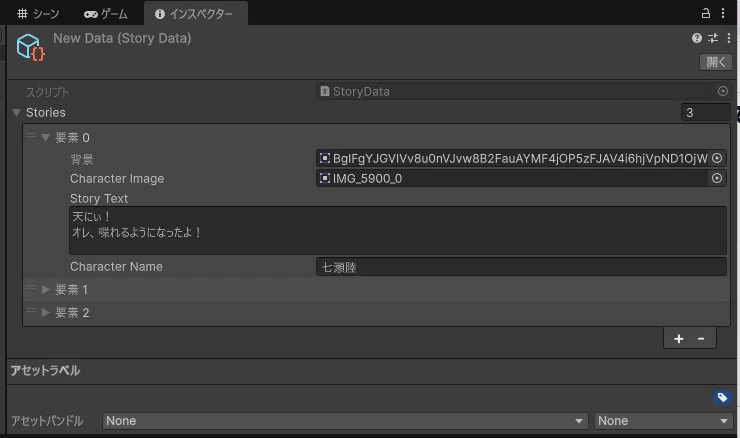
こんなのが作れるようになるはず、たぶん
✦
作ったオブジェクトスクリプトのおかげで
作成からStoryDataが作れるようになってる
空オブジェクトに通常スクリプト(後編スクリプト)
をいれる
そこに画像テキストいれる
テキストいれたら本体の中身は消していい
テキストの位置と画像の位置を決めるよ
✦
ちょっと長すぎるから後編を作るよ
だしまきたまごのレシピすごいね
後編はこちら